This document is intended to show Production Managers/Supervisors/Leads how to connect iPads to ADC scanning system for Microsoft Navision.
1. Log into iPad
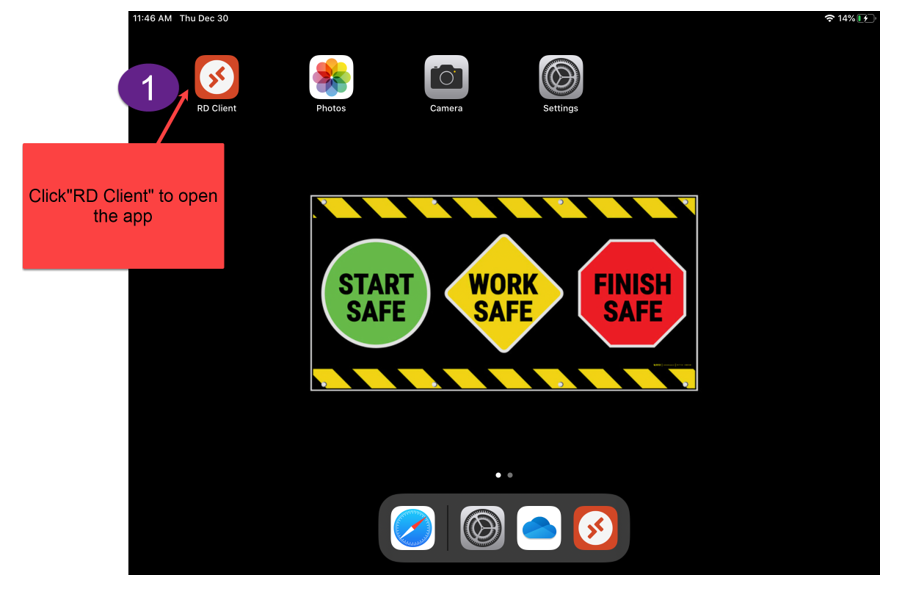
2. Click on the RD Client icon iPad Home Screen. This is how you connect to ADC Scanning System for Microsoft NAV 2018. If it is not there, email support@manzanaproductsco.com and we will add for you.
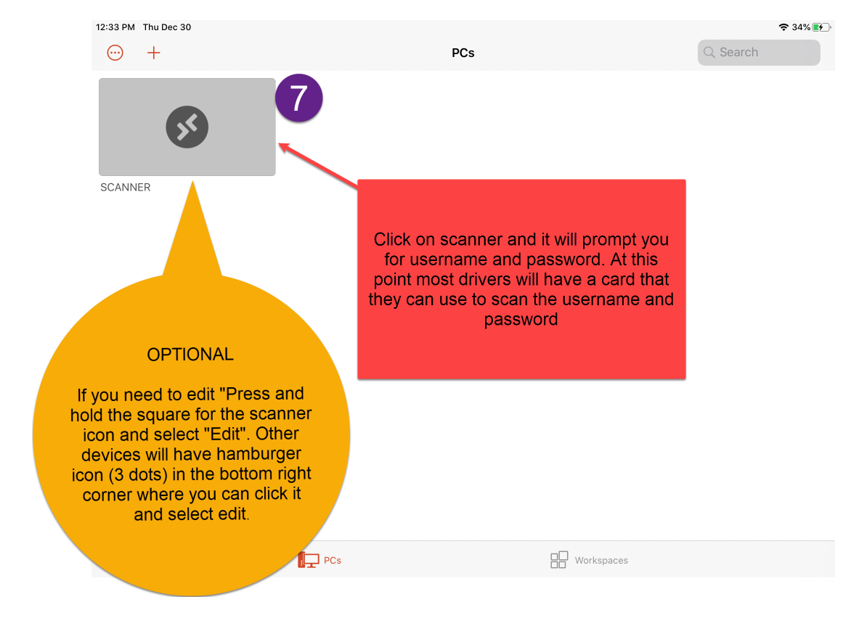
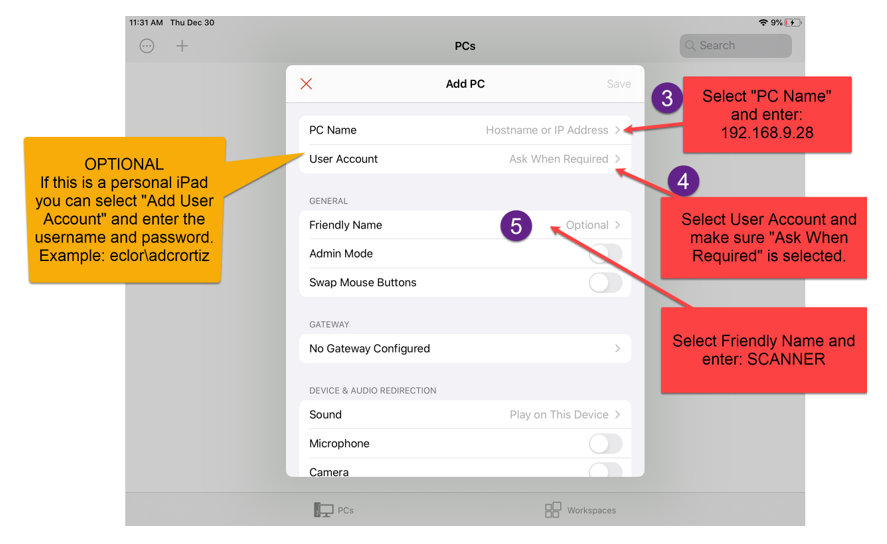
3. If you see an icon (“SCANNER”) click on it and proceed to step 5. If you do not see an icon, you will need to add (go to next step).
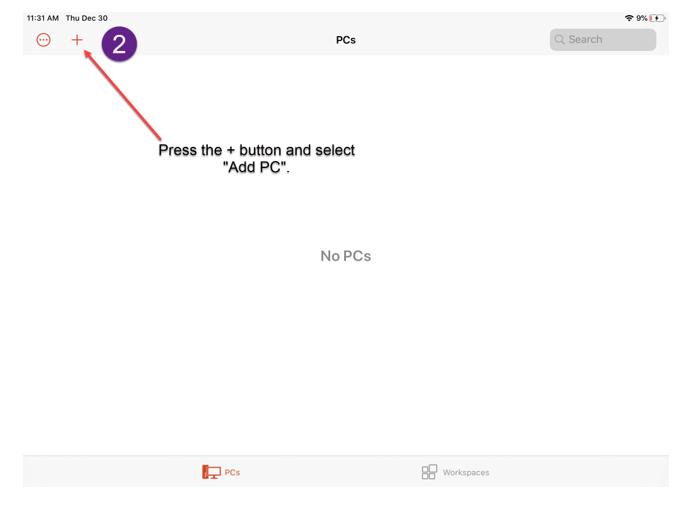
4. Click on the plus sign
5. This will prompt you for a user name and password.
- If it does not, a user name and password has been saved. Note: Click and hold on icon as described in step 2 and select “Edit” to make sure it’s the correct account.
- You will need to know your password to move forward. If you do not know your user name or password email support@manzanproductsco.com
-
Examples of user names:
- ECLOR\ADCTRICO
- ECLOR\ADCPOUCHKETTLE
- ECLOR\ADCJARLABELER
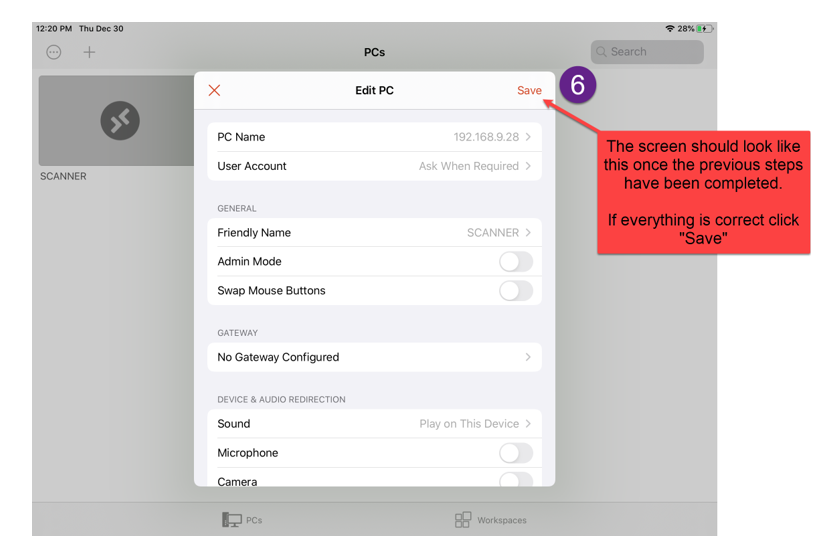
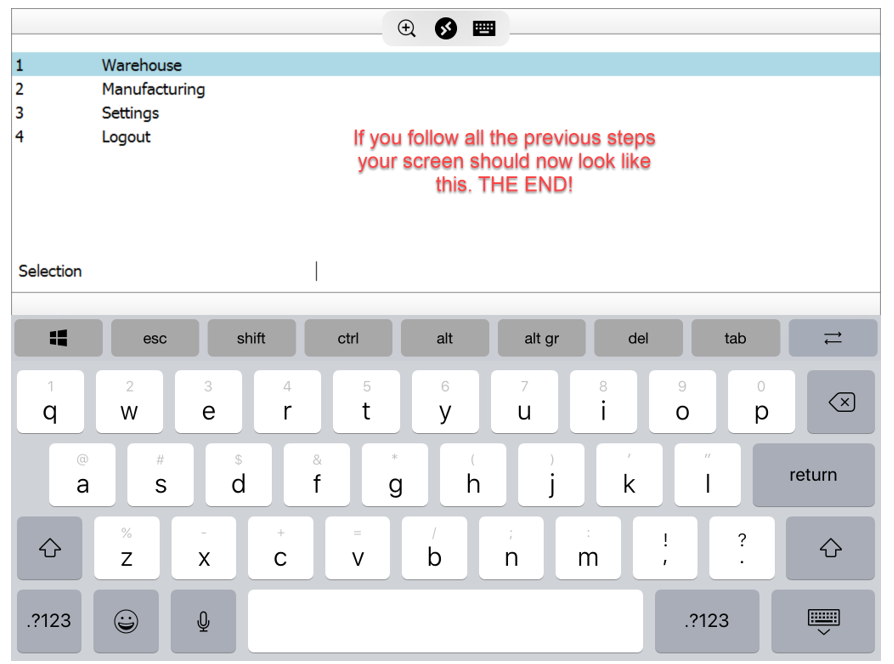
6. Once you enter in your password you will see the ADC program come up like below:
0 Comments