If a container tag won’t print, and you’ve verified that the printer is working and that you can print *other* container tags, but not the one you want, follow these steps:
- Verify that the printer is on, plugged in and has label printer paper
- Try printing a different Container Tag to see if the printer is working
- If it doesn’t print with a different Container Tag, the issue might be with the Container Labels for the container
- In NAV, check the Container Type setup by navigating to the “Container Type” screen
- Highlight the Container Type that is on the Container Tag you’re trying to print, click on the Navigate tab and then click “Labels”
- Verify that the Container Label in question has Label Type and Codes associated with it. It should look like below:
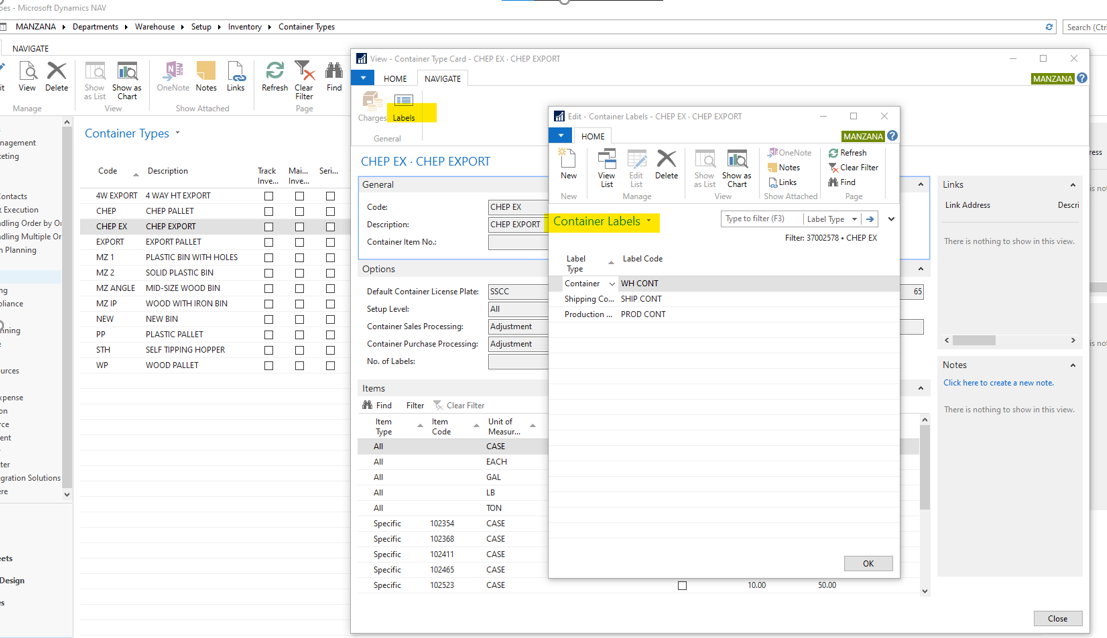
6. If it is blank, that is the issue (Skip Step 7)
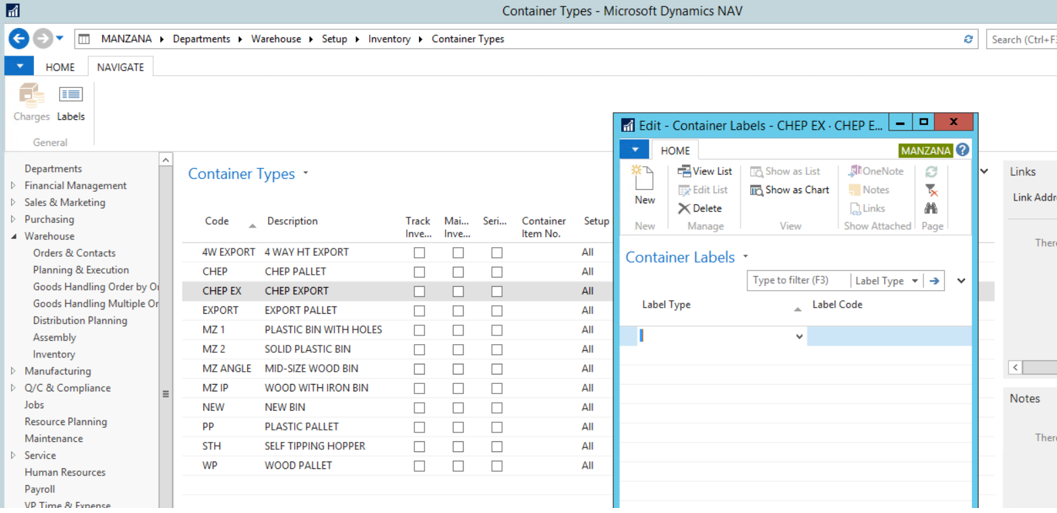
7. IF it is NOT blank, it could also be the Item’s Labels are missing.
-
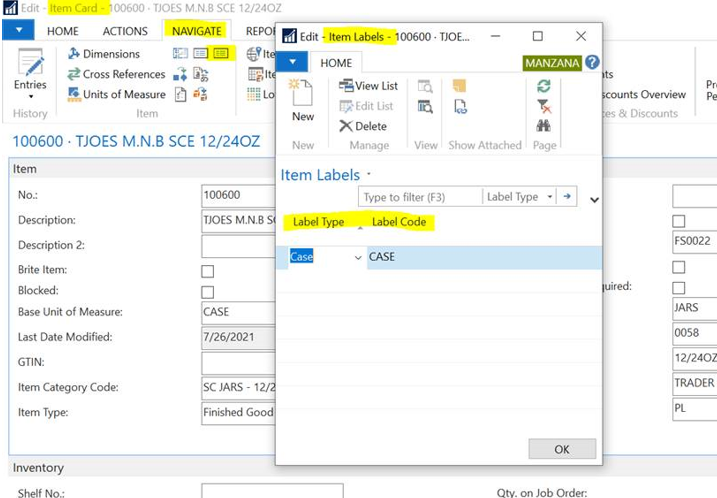
- Check by navigating to the “Items” screen
- Select the Item you’re trying to print a container tag for
- Go to the Actions Ribbon and click Labels
- The Item Labels should show either Case or Pre-Process
- If it is blank, this is the issue.
- Enter the correct Item Label and save
- Proceed to Step 9
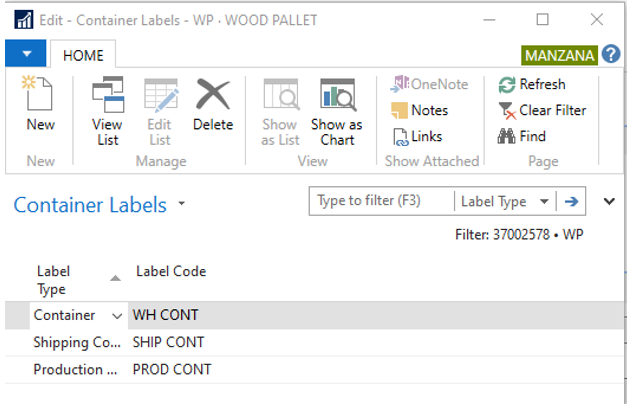
8. Fix by filling in the Container Labels with the following:
-
- Container = WH CONT
- Shipping Container = SHIP CONT
- Production Container = PROD CONT
9. Try printing the Container Label again
10. If it still does not print, contact IT support (support@manzanaproductsco.com)
0 Comments